
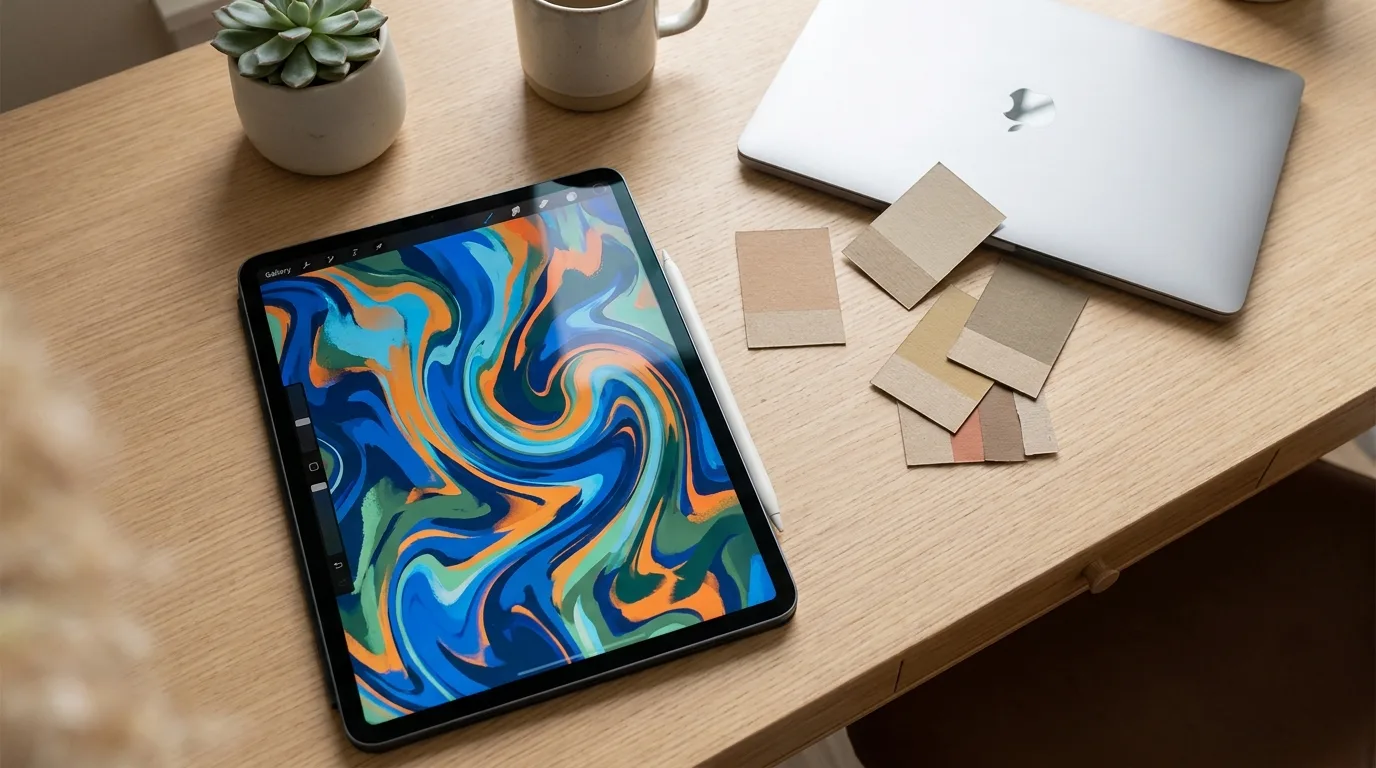
Creating print-ready artwork is the step that decides whether your design looks crisp and professional or blurry and disappointing. Great prints start long before the press, in the file you submit. This guide breaks down resolution, color, file formats, and the small details that separate amateur uploads from production-ready files. Master these basics once and every order you place will come back looking exactly the way you imagined it.
What Print-Ready Artwork Really Means
Print-ready artwork is a file that needs no fixing before it goes to production. It has the correct resolution, color mode, transparent or properly handled background, and accurate sizing. When a file is truly print-ready, what you see on screen is what you get on the shirt, mug, or transfer, with no surprises and no delays.
The opposite is a file that forces a printer to guess. A low-resolution logo, a stray white background, or text in a font the shop does not have can all stall an order or produce a result you never intended. Submitting a clean, finished file puts you in control of the outcome instead of leaving it to chance, which is exactly where you want to be when your name is on the product.
Resolution and File Size Basics
Resolution is the foundation of a sharp print. Low-resolution images that look fine on a phone often turn pixelated once printed at full size. Follow these guidelines for clean results:
- Use 300 DPI at the final print size for raster artwork.
- Design at actual size rather than scaling a small image up.
- Prefer vector files for logos and text since they scale without quality loss.
- Avoid screenshots and web images that are typically only 72 DPI.
If you are unsure, build your canvas to the exact dimensions you need, then check that the image still looks sharp at 100 percent zoom. For transfers, sizing your file to match the product helps, such as ordering DTF transfers by size that align with your artwork dimensions.
Color Modes and Accurate Printing
Color is where many designs go wrong. Screens display in RGB, but many printing workflows expect or convert to CMYK, which can shift bright RGB blues and greens. Design with print in mind, choose colors that translate well, and request a sample if exact color is critical. For DTF and UV DTF, a properly built file with rich, saturated tones reproduces beautifully on both light and dark surfaces.
Handle backgrounds correctly
For transfers and apparel prints, save your file with a transparent background, usually a PNG, so only your design prints and not a white box around it. Double-check that no stray pixels or faint edges remain after you erase the background.
Choosing the Right File Format
The format you submit affects quality and flexibility. PNG with transparency is the standard for most transfers and apparel graphics. PDF and SVG are excellent for vector logos and text. High-quality JPEG can work for full-bleed photographic designs without transparency, but avoid heavily compressed files. When in doubt, send a layered or vector source file so production has room to adjust if needed.
Designing for Different Surfaces and Products
A file that prints beautifully on a tee may need tweaks for a mug or a tumbler. Apparel prints benefit from bold, high-contrast art that reads well from a distance and survives a stretch when worn. Curved drinkware needs designs that account for the wrap, with key elements centered and important text kept clear of the edges that disappear around the curve.
Think about the garment or item color too. A design built for a white shirt can vanish on black unless you add a knockout or an outline, while light artwork pops against dark fabric. Planning the file around the final surface, rather than designing in a vacuum, is one of the simplest ways to avoid a reprint and get a result that looks intentional.
Organizing Files for Faster Production
Good file habits save you time on every order, not just the first one. Name your files clearly with the design, the size, and the date so you can find the right version instantly when a customer reorders. Keep a layered source file alongside the flattened print file, since the source is what you will reach for when you need to tweak a color or resize for a different product.
If you sell regularly, build a simple template for each product you offer with the correct dimensions and resolution already set. Dropping new art into a ready-made canvas removes guesswork and keeps your output consistent. When you batch several designs together, lining them up cleanly on a single sheet also trims waste and lowers your cost per print, which adds up quickly across a busy month.
Final Checks Before You Upload
A quick pre-flight review saves time and reprints. Confirm the dimensions match your product, the resolution is 300 DPI, the background is transparent where needed, and all text is spelled correctly and converted to outlines if it uses a special font. Zoom in to inspect edges for fuzziness or leftover pixels. If you are preparing many designs at once, a gang sheet upload lets you fit multiple print-ready graphics on a single sheet to save money. For more production help, browse our printing guides and tutorials.
Frequently Asked Questions
What resolution should print-ready artwork be?
Aim for 300 DPI at the final print size. This keeps lines and text sharp and prevents the pixelation that comes from upscaling low-resolution images.
Should I use RGB or CMYK for print files?
Many print workflows convert to CMYK, which can dull very bright RGB colors. Designing with print-friendly colors and ordering a sample helps you avoid unexpected shifts.
What file format is best for transfers?
PNG with a transparent background is the standard for DTF and UV DTF transfers. Vector formats like PDF or SVG are ideal for logos and text.
Why does my design have a white box around it?
That happens when the background is not transparent. Save your artwork as a transparent PNG and erase any leftover background pixels so only your design prints.
Do I need to outline my text before sending a file?
Yes, if your design uses a special font. Converting text to outlines or curves locks the appearance so the printer reproduces it exactly even without the original font installed.
Can I enlarge a small image to make it print-ready?
Not effectively. Scaling a small raster image up adds pixelation rather than detail. Recreate the art at full size or use a vector file so it stays crisp at any dimension.
Turn your print-ready artwork into stunning products with transfers and gang sheets from Mr Beat Print Studio. Upload your files and start printing with confidence today.